
Adding and Managing Team Members in Rankar.ai
The Teams section is where you manage the people behind your projects. Whether you're setting up a new workspace or scaling operations, adding team members...
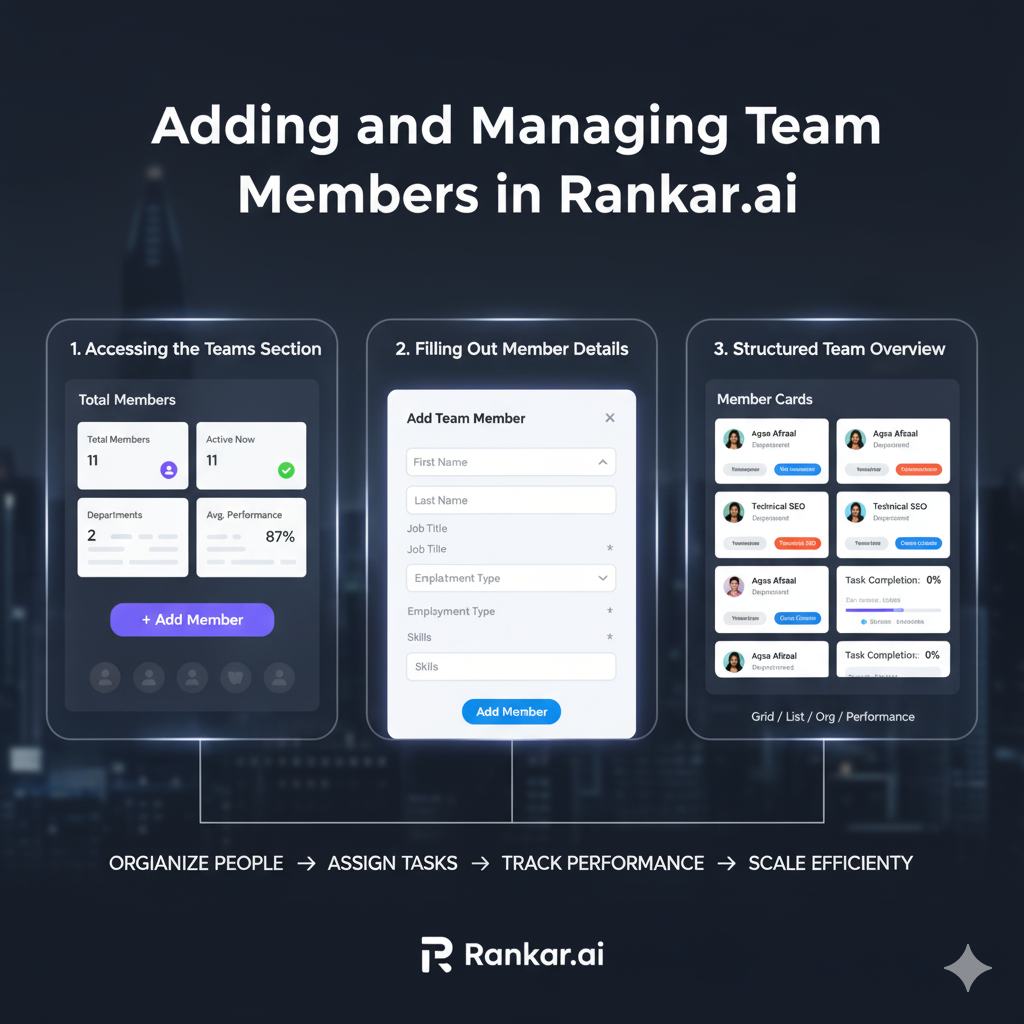
The Teams section is where you manage the people behind your projects. Whether you're setting up a new workspace or scaling operations, adding team members properly is essential for smooth collaboration, clear task assignment, and accurate performance tracking.
This guide will walk you through the Add Team Member feature step by step, explain each field in detail, and share best practices to help you maintain a well-structured and efficient team setup.
Accessing the Teams Section
Start by navigating to the Teams tab in the Task Manager.
This page gives you a structured overview of your organization’s workforce, including:
Total Members – the total number of active users in your workspace.
Active Now – real-time status showing who’s currently online.
Departments – organizational groupings of team members by function.
Average Performance – task completion statistics to monitor productivity.
Here, you can view your existing members, switch between multiple layout views (Grid, List, Org, Performance), and manage the structure of your team.
To add a new member, click the Add Member button located at the top-right corner of the page.
Opening the Add Team Member Form
Clicking Add Member opens a structured form, as shown in the image above. This form is designed to collect essential information that helps integrate the new member into your team smoothly and assign tasks effectively.
Each field has a specific role in ensuring the person is correctly categorized, authorized, and ready to work inside the system.
Filling Out the Add Team Member Form
Here’s a detailed breakdown of each field:
Basic Information
First Name / Last Name
Enter the team member’s full legal name. This will appear in task assignments, performance metrics, and reports. Use proper capitalization to maintain professionalism.Email
This is the email the team member will use to log in. Ensure it’s accurate to avoid access issues.Password
Set a secure initial password. The member can change it after logging in. For security, encourage using a mix of uppercase, lowercase, numbers, and symbols.Phone (Optional)
Useful for direct contact or internal directories, but not mandatory.
Job & Department Details
Job Title
Specify their professional role (e.g., “SEO Specialist,” “Senior Developer,” “Content Writer”). This is important for identifying responsibilities and filtering users.Department
Choose the relevant department from the dropdown. Departments help group team members logically (e.g., Technical, Content, Marketing) and make task filtering and reporting more efficient.
Employment Information
Employment Type
Select the appropriate type (e.g., Full-time, Part-time, Contractor, Intern). This helps in internal HR tracking and workload allocation.Start Date
Set the official start date. This is particularly useful for onboarding timelines, probation periods, or performance tracking from day one.
Additional Information
Location
Specify their work location. This is especially useful for distributed teams working across different time zones.Skills
Add relevant skills separated by commas (e.g., React, Node.js, Technical SEO, Project Management). Skill tagging helps in quickly finding the right person for specific tasks and projects.Salary and Currency (Optional)
Enter the annual salary and choose the currency. This is optional and typically used if you’re managing employment records directly inside Rankar.ai.
Finalizing the Addition
Once you’ve filled in all the relevant fields:
Review the information carefully to avoid errors in email addresses, roles, or department assignments.
Click the Add Member button to save.
The new team member will now appear in the Teams dashboard, and you can start assigning them tasks and projects immediately.
Best Practices for Adding Team Members
For new admins or managers, here are some professional guidelines to follow:
Use consistent naming conventions – avoid abbreviations or nicknames in official fields.
Always assign a department – this makes filtering and reporting far more efficient later.
Include key skills – this will help you match the right people to the right tasks.
Double-check email and password details – access issues often occur due to typos.
Record start dates accurately – this helps when evaluating performance over time.
Assign proper job titles – titles reflect the person’s role and responsibility clearly.
Why Proper Team Setup Matters
A well-structured team setup does more than store information — it drives operational efficiency. Here’s why this step is important:
Task assignment becomes faster when members are categorized by department and skills.
Project coordination improves because the right people can be filtered easily.
Performance tracking becomes meaningful, with clear roles and timeframes attached to each team member.
Access and accountability are clearer, reducing confusion about responsibilities.
Poorly organized team records often lead to misassignments, reporting errors, and wasted time later. Setting it up correctly at the start saves significant effort as your team grows.
