How to Use the AI Composer in RankTalk for Faster Messaging
Use RankTalk's AI Composer to draft client messages, summarize threads, translate tone, and respond faster. Complete guide for SEO agency communication.
# How to Use the AI Composer for Faster Messaging
You're about to write a client message explaining why a sprint goal got missed. The first draft sounds defensive. The second sounds too casual. The third is too long. Twenty minutes in, you still haven't sent it, and the client is waiting.
Or: you log on to a project channel after 3 days of vacation. There are 87 messages spanning a senior strategy decision, three audit findings, and a client escalation. You'd like to know what happened without reading all 87.
These are AI Composer use cases. The AI Composer drafts, rewrites, summarizes, and shifts tone — all from inside the RankTalk composer where you're already writing. This article walks through how to use it without losing your voice in the process.
What You'll Learn
By the end of this article, you'll understand the 4 main AI Composer modes (Draft, Rewrite, Summarize, Translate), how to give the AI good prompts so the output sounds like you, when to use the AI Composer versus writing manually, how to summarize long threads in 5 seconds, and the team conventions that keep AI-generated content recognizable so trust isn't undermined.
Why This Matters (The Benefit)
The hardest part of agency communication isn't deciding what to say — it's getting it written in the right tone, at the right length, fast enough.
A typical Manager spends 30-50 minutes per day drafting and re-drafting messages: client updates, internal explanations, follow-ups on stuck decisions. Senior team members spend even more time on sensitive communications (escalations, scope conversations).
The AI Composer cuts this to 8-15 minutes per day for most communication tasks. For an Owner or Senior Manager, that's 15-25 hours/month recovered. The trade-off: you have to learn to prompt it well and edit its output to sound like you. The 30-minute investment in learning these patterns pays off within a week.
The 4 AI Composer Modes
Mode 1: Draft
Generates a new message from a description.
Use when:- You know what you want to say but not how to phrase it
- The message needs a specific tone (formal, casual, apologetic, confident)
- You're stuck on the opening sentence
Example prompt: > Draft a message to the client explaining we're missing the DR40+ links goal by 18% this sprint. Apologetic but confident about recovery. Include 2 specific actions we're taking next sprint.
Mode 2: Rewrite
Improves a message you've already drafted.
Use when:- You wrote a draft but the tone is wrong
- The message is too long or too short
- You want a more confident or more diplomatic version
Example: write a defensive-sounding draft, then prompt "Rewrite to sound less defensive, more solution-focused."
Mode 3: Summarize
Compresses long content into a brief overview.
Use when:- You want to summarize a long thread before responding
- You need to compress a long article or PDF before sharing
- You want a quick scan of yesterday's channel activity
Mode 4: Translate
Translates between languages, with context awareness.
Use when:- Communicating with non-English-speaking clients or partners
- Reading messages from team members in their native language
- Converting between formal and informal registers within a language
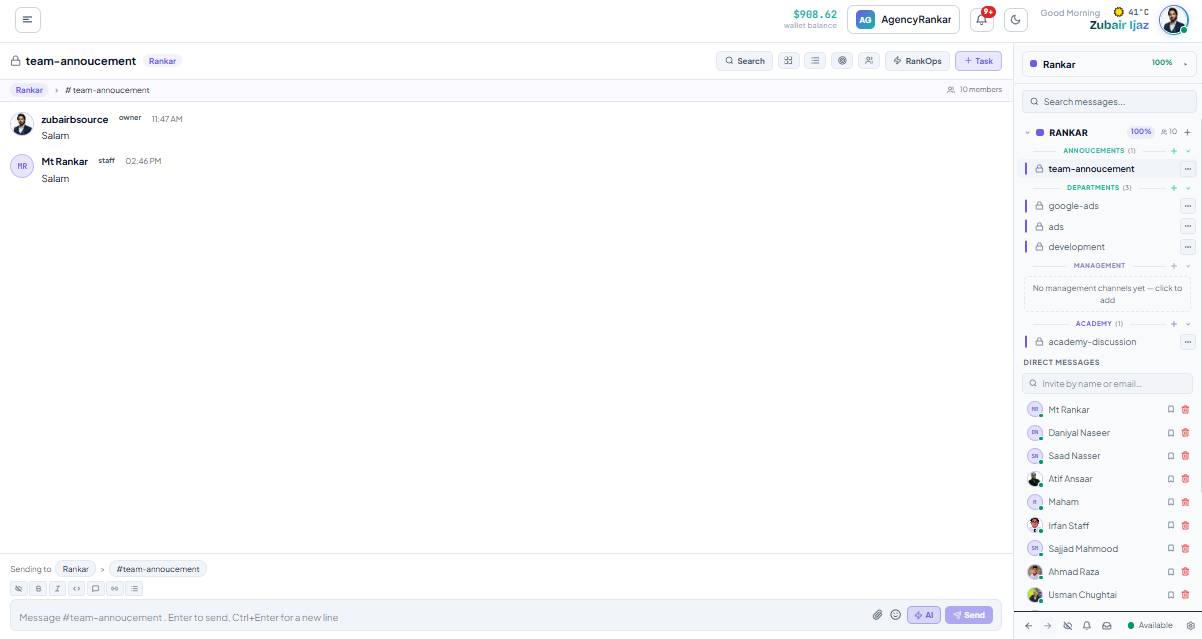
Step 1: Open the AI Composer
There are three ways to invoke the AI Composer:
Method 1: Composer Icon
In any channel, DM, or thread, click the AI Composer icon (sparkle icon) in the message composer toolbar.
The AI Composer panel slides open with the 4 modes visible.
Method 2: Slash Command
Type /ai in the composer to open the AI Composer in command mode. You can then use:
``
/ai draft a message to client explaining the goal miss
/ai rewrite to sound more confident
/ai summarize this thread
/ai translate to Spanish
`
Method 3: Right-Click Action
Right-click on any existing message or thread to access AI actions:
- Summarize this thread — works on the entire thread
- Translate this message — works on a single message
- Suggest a reply — drafts a contextual reply
Step 2: Give the AI a Good Prompt
The AI Composer is only as good as the prompt you give it. The difference between mediocre output and great output is usually 30 seconds of prompt refinement.
Bad Prompt
`
Draft a message to the client about the missed goal
`
This produces generic output because it doesn't specify tone, length, or specific context.
Good Prompt
`
Draft a message to the client (CMO at Acme Co.) explaining we missed
the DR40+ links goal by 18% this sprint. Tone: apologetic but
confident about recovery. Length: 4-5 sentences max. Include 2
specific actions for next sprint: (1) shifting outreach to DR60+
prospects, (2) adding a daily check-in cadence.
`
This produces specific, usable output because it includes:
- Audience (who the message is for)
- Context (what happened)
- Tone (specific emotional register)
- Length constraint
- Specific content requirements
Prompt Template
For most messages, use this structure:
`
Draft a [type of message] to [audience] explaining [situation].
Tone: [emotional register]. Length: [constraint]. Include
[specific points].
`
For thread summaries:
`
Summarize this thread in [length]. Focus on [aspect]. List
[specific outputs like decisions or action items].
``
Step 3: Edit the AI Output Before Sending
Never send raw AI output. The AI generates a draft; you make it sound like you.
What to Edit
- Tone calibration — AI defaults to slightly formal; loosen if your client relationship is casual
- Specific details — verify any facts the AI included; it might hallucinate numbers
- Phrasing that's "off" — replace AI tics ("As we navigate this challenge...") with your normal voice
- Length — AI often over-writes; cut 20-30%
What Not to Edit
- The structural decisions (the AI's ordering of points usually works)
- The framing (if the AI says "I want to be transparent about X," that framing usually lands well)
- The opening hook (AI is often good at opening sentences)
Time Investment
Editing should take 20-40% of the time it would take to write from scratch. For a 5-sentence client message, drafting from scratch takes 8-12 minutes. AI-generated + edited takes 3-5 minutes.
Pattern 1: Drafting Sensitive Client Messages
The highest-value AI Composer use case is drafting messages where tone matters most — goal misses, scope conversations, billing issues.
Workflow:- Open the project channel where the conversation is happening
- Click AI Composer → Draft
- Give a specific prompt with audience, situation, tone, length
- Review the output — does it sound like something you'd say?
- Edit for your voice
- Send
For Sarah Chen at RankFirst Digital, this workflow turned 25-minute "goal miss email" drafting sessions into 6-minute sessions, with arguably better quality output because she's not too close to the situation to write well in the first draft.
Pattern 2: Summarizing Long Threads
Right-click any thread → Summarize with AI.
The AI returns:
- A 2-3 sentence summary of the conversation
- Key decisions made
- Outstanding action items
- Open questions
This is the surface that makes "coming back from vacation" tolerable. Instead of reading 87 messages across 12 threads, you read 12 summaries and engage with the 2-3 that need your attention.
Pattern 3: Translating Cross-Cultural Communication
For agencies with international clients or partners, translation is more than language conversion — it's tone matching.
Workflow:- Right-click a message → Translate with AI → pick target language
- The translation preserves not just words but register (formal/informal/business)
- Edit for any client-specific terminology
The AI is good at recognizing context: a casual Slack-style message translates differently from a formal client email. It picks the right register.
Pattern 4: Tone-Shifting Drafts You've Already Written
When you've written a draft but it doesn't quite land, use Rewrite mode.
Examples:- "Rewrite to sound less apologetic, more solution-focused"
- "Rewrite to be 30% shorter, same points"
- "Rewrite to sound more confident"
- "Rewrite as if I'm explaining this to a smart but non-technical client"
This is faster than re-drafting from scratch and often produces better output than your own re-drafting because the AI doesn't get stuck on word choices that aren't working.
Team Conventions for AI Composer Usage
The risk of AI Composer is that it homogenizes your team's voice — every Manager starts sounding the same. Build conventions to prevent this.
Convention 1: AI Drafts, Humans Edit
Never send raw AI output. The minimum standard: read the output, change at least 30% of the words, and verify any specifics.
Convention 2: Disclose for External Communication (Optional)
Some agencies disclose AI assistance in client communication: "Draft assisted by AI, edited by [name]." This is transparency-positive but not universally adopted.
Convention 3: Don't Use AI for Sensitive Personnel Conversations
Performance reviews, capacity discussions, and personnel decisions should be human-drafted. AI assistance here can feel impersonal in ways that damage trust.
Convention 4: Keep AI Composer Off for Live Client Calls
When you're typing in a shared channel during a live client call, don't use AI Composer. The pause to invoke and edit is visible. Type natively or use voice-to-text.
Common Mistakes
- Sending raw AI output. Recognizable AI phrasing in client communication erodes trust. Always edit.
- Using AI for sensitive personnel conversations. The wrong context for AI assistance. Write these yourself.
- Generic prompts producing generic output. "Draft a message" gets you a generic message. Specific prompts get specific output.
- Trusting AI numbers without verification. AI sometimes hallucinates statistics. If the draft includes specific numbers, verify them before sending.
- Letting team members over-rely on AI Composer. A team where 90% of messages are AI-drafted loses individual voice. Aim for ~30% AI-assisted, 70% human-drafted as a healthy mix.
Pro Tip
Use Summarize mode every Monday morning across your highest-volume channels to catch up on the weekend without reading every message. Right-click each project's main channel from Friday afternoon onward → Summarize with AI. The AI returns 2-3 sentence summaries of each weekend's activity. You read 5 summaries instead of 200 messages. You catch what matters in 10 minutes instead of 90. Sana P. does this as her Monday 8:30 AM ritual across her 14 client projects. She walks into 9 AM Monday standups already up to speed, having read zero weekend messages directly.What to Read Next
- Related: Article 6 [How to Use Threaded Replies, Mentions, and Reactions] — when AI summarization is most valuable
- Related: Article 5 [How to Use the /task Command to Spawn RankOps Tasks from Chat] — combining AI drafts with task creation
- Related: Article 10 [How to Search History, Pin Messages, and Find Past Conversations] — finding the content you want AI to work with
Apply This With the Rankar Toolkit
RankTalk works best when paired with the rest of the Rankar suite. Spin up the relevant tools directly: RankTalk • RankOps • RankAudit • RankWriter • RankTracker • RankAIO • RankBridge • RankLinks • RankLocal • RankLaunch • RankSpy • RankUX • RankLead. Each tool pushes events into RankTalk automatically — task creation, goal alerts, ranking changes, and approval requests all surface as native messages in the right channels.