How to Set Up RankTalk for Your Agency in 10 Minutes
Set up RankTalk for your SEO agency in 10 minutes. Step-by-step guide to channels, team invites, slash commands, and RankOps integration.
# How to Set Up RankTalk for Your Agency in 10 Minutes
You just opened RankTalk for the first time. Your team is still messaging on Slack. Your last 4 client onboarding conversations are scattered across DMs, emails, and a Notion page nobody updated. You'd like to migrate the team in the next 2 weeks but you haven't decided whether to do a hard cutover or run both in parallel.
This guide gets you to a fully configured RankTalk in 10 minutes — channels populated, team invited, slash commands enabled, and a clear path to migrating off whatever you're using today.
What You'll Learn
By the end of this article, you'll have a working RankTalk for your Agency with channels auto-created from Project Management, your team invited with the right channel access scopes, slash commands configured for /task, /brief, and the rest of the RankOps integrations enabled, and a clear migration plan for moving conversations from Slack or whatever tool you're using today.
Why This Matters (The Benefit)
The hidden cost of running team chat outside your project management system is context loss. A senior SEO mentions an audit finding in Slack, the conversation moves on, and three days later when someone goes to write the task in Asana, they can't find the original message. They re-improvise the task. The original insight is lost.
RankTalk eliminates that loss because it's inside the same platform as your tasks, briefs, and project data. When a conversation needs to become work, the /task command turns it into a structured RankOps task in 5 seconds — with the original message linked, project pre-filled, and assignees suggested. Agencies that migrate from Slack/Asana to RankTalk + RankOps typically recover 6-9 hours per team member per month in eliminated context-switching alone.
Step 1: Open RankTalk and Verify Your Agency Is Connected (1 Minute)
From your Agency dashboard, click RankTalk in the top-level navigation.
If your Agency was created recently, you'll land on a brief welcome screen showing your existing projects and the channels that have auto-created for each. If you've been using Rankar for a while and never opened RankTalk, the channels are already there — RankTalk creates them in the background whenever a project is created in Project Management.
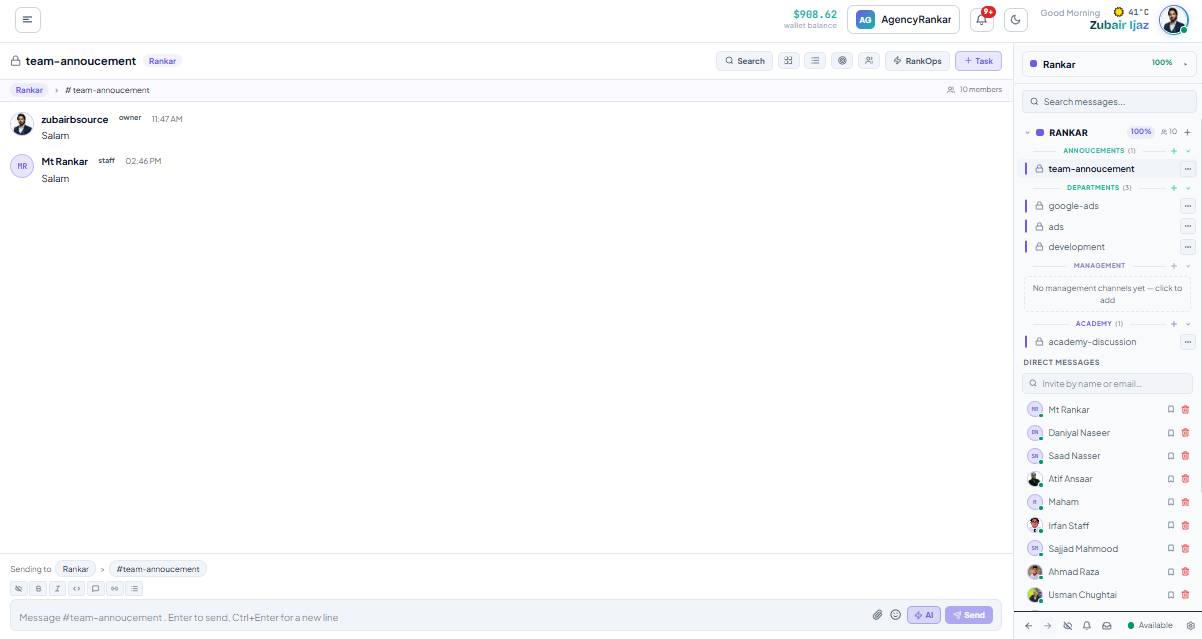
What You Should See
The left sidebar will show:
- Agency-wide channels —
#general,#random,#wins(these create once per Agency) - Project channels — one set per project in your Project Management module (typically 3 channels per project: main, alerts, wins)
- Direct Messages section — empty until you start DMing people
- External Organizations section — empty until you add partner agencies
If you don't see project channels for projects you know exist in Project Management, the sync is still running. Refresh after 30 seconds.
Step 2: Configure Agency-Level Chat Settings (2 Minutes)
Click your agency name in the top-left → Agency Settings → RankTalk Settings.
Three settings worth configuring on day 1:
Agency Timezone (Affects EOD Standup Push)
RankTalk uses your Agency timezone (set in Agency profile) for:
- EOD Standup push timing (default 5 PM)
- Goal alert digest delivery
- Notification quiet-hours defaults
If your team is distributed, use the timezone where most of your work happens. Individual Members can override for their own notifications.
Notification Defaults
The Agency-level defaults flow to every new team member at invite time:
- All messages in assigned project channels — too noisy for most agencies; recommend Mentions only
- Mentions and DMs only — the sane default
- Daily digest — for low-priority channels; replaces real-time pings with a single morning summary
Pick Mentions and DMs only as your default unless your agency runs a different pattern.
Branding (Already Configured from Agency Settings)
The logo and brand colors you set in Agency Settings flow into RankTalk automatically. The login screen, email notifications, and shared channels all show your brand — not Rankar's. No additional work needed.
Step 3: Verify Project Channel Structure (1 Minute)
Click any project channel in the sidebar. You should see:
- Main channel (e.g.
#acme-co-seo-q2) — general project discussion - Alerts channel (e.g.
#acme-co-alerts) — system messages from RankOps and connected tools - Wins channel (e.g.
#acme-co-wins) — completed deliverables, surfaced from Recent Wins
What's in Each by Default
The alerts channel is the most useful surface to verify first. It should already have a few system messages if your projects have any activity:
- Goal status changes (e.g. "DR40+ links goal: 18 → 22, status remains On Pace")
- New tasks created
- Stuck-stage approvals (24h/48h/72h alerts)
- Sprint forecast updates
If the alerts channel is empty and the project has been active, the integration may not have synced yet. We'll confirm in Step 5.
Step 4: Invite or Sync Your Team (3 Minutes)
If you've already added Members in Project Management, they're already in RankTalk. Channel access auto-scales with project assignment.
What "Auto-Scaled" Means in Practice
- A Manager assigned to the Acme project → sees
#acme-co-seo-q2,#acme-co-alerts,#acme-co-wins - A Staff member assigned to the same project → sees the same channels
- A Manager not assigned to that project → doesn't see those channels at all
This is by design. The Manager who runs BrightCo doesn't need to see Acme's channels and vice versa.
Inviting New People
If you have team members who aren't yet in your Agency, invite them via:
Agency Settings → Members → + Invite Members (covered in detail in our other guide on inviting team and setting roles)For each person, pick:
- Role — Manager or Staff
- Projects to assign them to
Once they accept the invite, they automatically get RankTalk channel access for assigned projects.
Bulk-Inviting from Slack/Asana Export
If you're migrating from Slack or Asana, you can bulk-invite via CSV. Export your existing team list with emails and roles, then Members → Bulk Invite → Upload CSV. The CSV format is documented in Agency Settings → Members → Help.
Step 5: Enable Slash Commands and Test (2 Minutes)
Slash commands are enabled by default at the Agency level, but it's worth confirming and testing.
Confirm Slash Commands Are Enabled
Agency Settings → RankTalk Settings → Slash CommandsYou should see toggles for:
/task— Spawn a RankOps task (default: ON)/brief— Generate an AI content brief via RankWriter (default: ON)/goal— Query or update a goal (default: ON)/sprint end— Close current sprint (Manager+ only)/retro— Run a sprint retrospective (Manager+ only)/report sprint— Generate sprint report (Manager+ only)/report month— Generate monthly client report (Manager+ only)
All should be ON. Leave them.
Test Your First Slash Command
Open any project channel. Type:
``
/task Test setup verification
`
A task creation dialog opens inline. The project is pre-filled (from the channel). Enter a brief description, pick yourself as assignee, set priority to Green (this is a throwaway), and click Create.
The task lands in RankOps' Backlog for that project, and you see a confirmation message in the channel with a link to the task. Delete it from RankOps once you've confirmed.
If the dialog doesn't open or the task doesn't appear in RankOps, the slash command integration isn't working. Check Agency Settings → Integrations → RankOps to verify the bidirectional sync is enabled.
Step 6: Enable EOD Standup Push for Active Projects (1 Minute)
For every active project, enable the EOD Standup auto-push so your team gets a daily summary in RankTalk without writing anything.
Quick Setup Per Project
In RankOps → [project] → EOD Standup:
- Click Configure EOD Standup
- Set destination channel: typically the project's main channel (e.g. #acme-co-seo-q2
) - Set trigger time: default 5 PM Agency timezone
- Save
Repeat for each active project. For a 5-project agency, this takes 2-3 minutes total.
From tomorrow 5 PM onward, each project's RankTalk channel auto-receives the yesterday/today/blockers summary.
Migration Strategy: How to Move Off Slack in 2 Weeks
If your team is currently on Slack, here's the migration pattern most agencies use:
Week 1: Run Both in Parallel
- Enable RankTalk for the team
- Set a rule: any conversation about a specific client project happens in RankTalk
- Keep Slack for cross-team general chat
- Train the team on /task
and/briefas the main slash commands
Week 2: Sunset Slack
- Move #general
and#randomconversation to RankTalk - Archive Slack channels (don't delete — keep for searchable history)
- Set Slack to read-only mode for old conversations
By end of week 2, your team should be entirely in RankTalk. The hard cutover doesn't work as well as the gradual migration — people resist tool changes when they're forced overnight.
Common Mistakes
- Creating channels manually in RankTalk before creating projects in Project Management. The architecture is: Project Management → Project → auto-creates RankTalk channels. Going RankTalk-first means you get orphan channels that aren't connected to any project's task system.
- Defaulting all team members to "All messages" notifications. This is the fastest way to make your team turn notifications off entirely. Use Mentions + DMs as the default; let individual Members opt into "All messages" for their highest-priority channels.
- Skipping the slash command test. If /task
doesn't work and you don't notice for a week, you've trained your team to type "let's create a task for that" as free-text — and you've lost a week of structured work capture. Test it on day 1. - Inviting everyone as Manager because "they're senior." Manager grants project structure rights. A senior IC who works on tasks but doesn't reassign work across the team should be Staff. Reserve Manager for actual project owners.
- Migrating Slack history into RankTalk via bulk import. It looks tempting but creates noise — old context from a different tool clutters new conversations. Leave Slack archived and let RankTalk's history start fresh.
Pro Tip
Make /task the only way work enters your team's RankOps backlog during the first 30 days of RankTalk adoption. Treat free-text task suggestions in chat as conversation, not commitments. If something needs to become work, someone has to type /task` to spawn it. This forces the habit. By day 30, your team uses slash commands instinctively. Sana P. at her 14-client agency tracks "tasks created via slash command" as an adoption metric — when it crosses 80% (vs tasks created manually in RankOps), she considers RankTalk fully adopted. It typically takes her teams 18-22 days to hit that threshold.
What to Read Next
- Related: Article 2 [How to Understand the RankTalk Interface] — channels, DMs, threads, sidebar tour
- Related: Article 3 [How to Invite Your Team & Set Up Channel Access by Role] — Manager vs Staff channel access details
- Related: Article 5 [How to Use the /task Command to Spawn RankOps Tasks from Chat] — the most important slash command
Apply This With the Rankar Toolkit
RankTalk works best when paired with the rest of the Rankar suite. Spin up the relevant tools directly: RankTalk • RankOps • RankAudit • RankWriter • RankTracker • RankAIO • RankBridge • RankLinks • RankLocal • RankLaunch • RankSpy • RankUX • RankLead. Each tool pushes events into RankTalk automatically — task creation, goal alerts, ranking changes, and approval requests all surface as native messages in the right channels.