RankTalk Interface Guide — Channels, DMs, Threads & Sidebar
Master the RankTalk interface. Complete guide to channels, DMs, threaded replies, sidebar navigation, message composer, and keyboard shortcuts for SEO agen
# How to Understand the RankTalk Interface (Channels, DMs, Threads, Sidebar)
It's day 2 in RankTalk and you've already received 14 messages, 3 mentions, 1 DM, and a system message you don't know how to read. Your team is asking which channel to post their daily status in. Your screen looks busy but you can't tell which messages need a response and which you can scroll past.
This article walks through every part of the interface so you can navigate confidently — find any channel in 2 seconds, scan unread items in 30 seconds, and respond to the right things without missing the wrong things.
What You'll Learn
By the end of this article, you'll understand the 4 main interface surfaces (sidebar, channel view, thread panel, composer), how the sidebar groups channels and conversations, what each message-type icon means, how to use the universal quick switcher to jump anywhere in 2 seconds, and the 8 keyboard shortcuts that cut your time in RankTalk in half.
Why This Matters (The Benefit)
A modern SEO agency Owner or Manager opens their team chat 30-60 times per day. If each open takes 8 seconds to "find what changed since I last looked," that's 4-8 minutes per day, 100-200 minutes per month, just orienting yourself.
Mastering the interface — especially the quick switcher and the sidebar grouping — cuts that to 2-3 seconds per open. Across a year, an Owner recovers 15-20 hours of working time purely from faster navigation. Diego R. tracked this at his in-house team and reported a 67% reduction in "where did that message go" moments after a week of interface training. That's not a feature benefit — that's pure attention economy.
The 4 Main Interface Surfaces
Surface 1: Left Sidebar (Navigation)
The left sidebar is your home base. It organizes everything you can reach in RankTalk into vertical sections:
- Search bar at the top (or Cmd/Ctrl+K to open the quick switcher)
- Agency-wide channels —
#general,#random,#wins - Project channels — grouped by project, expandable
- Direct Messages — people you've DMed recently
- External Organizations — partner agencies you've granted scoped access to
- Apps & Integrations — bots like the RankOps system messenger
- Your profile at the bottom (settings, status, sign out)
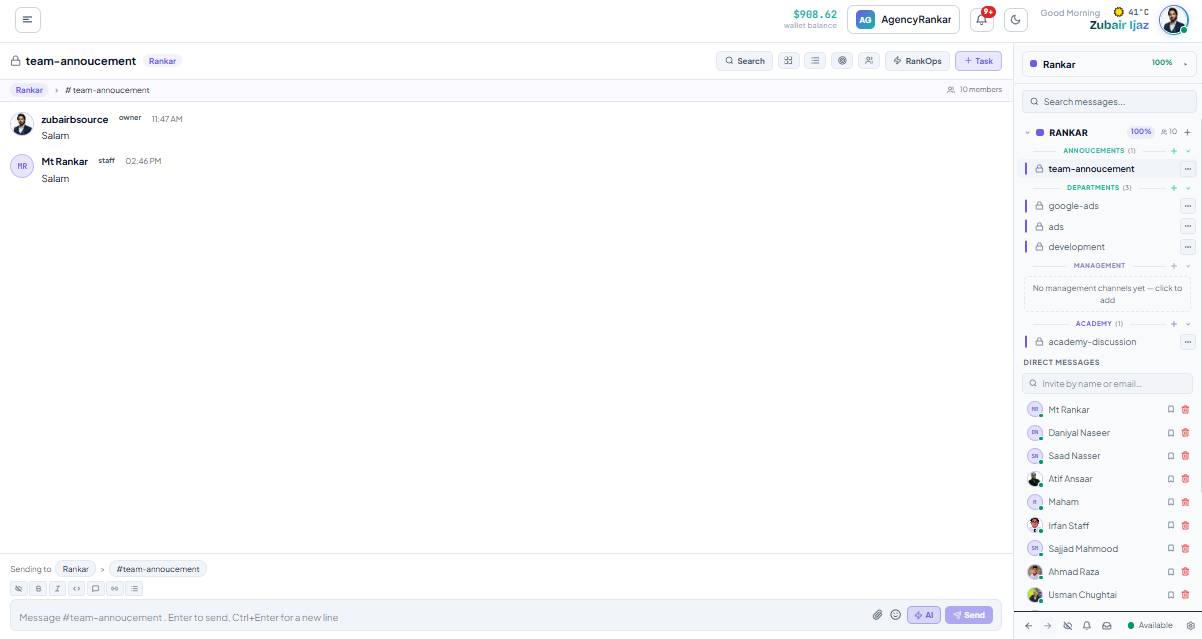
Surface 2: Main Channel View
When you click into a channel, the main view occupies the middle of your screen:
- Channel header — name, member count, pinned items, search this channel
- Message stream — chronological, newest at the bottom
- Message composer — at the bottom, where you type
Surface 3: Right Panel (Threads & Previews)
The right panel opens when you:
- Click a threaded reply (the panel shows the full thread)
- Click a task link in a message (the panel previews the RankOps task)
- Click a file (the panel shows the file preview)
The right panel doesn't close the channel view — you can scroll the main channel while reading the thread.
Surface 4: Top Bar (Account & Notifications)
The top bar runs across the top of the screen:
- Search (also accessible via Cmd/Ctrl+K)
- Notifications inbox — bell icon showing recent mentions, DMs, and system alerts
- Help/keyboard shortcuts —
?icon - Your avatar — status indicator (Active / Away / Do Not Disturb)
How the Sidebar Groups Channels
The sidebar uses a consistent grouping pattern. Understanding this pattern speeds up everything else.
Channel Naming Convention
Project channels follow #:
#acme-co-seo-q2— main project channel#acme-co-alerts— system messages and alerts#acme-co-wins— completed work surfaced from Recent Wins
This naming is automatic — you don't pick channel names. RankTalk derives them from project metadata in Project Management.
Expand/Collapse Groups
Click the chevron next to any section header (Agency-wide, Project channels, DMs) to expand or collapse. For a 10-project agency, you typically collapse projects you're not actively working in to keep the sidebar scannable.
Unread Indicators
Each channel and DM shows an unread indicator:
- Bold name — you have unread messages
- Bold name + number — you have unread messages including X mentions of you
- Regular name — no unread, or you've turned off notifications
Recently Visited
The "Recents" section at the very top of the sidebar shows the 5-7 channels you've opened most recently. Useful for jumping back to active conversations without scrolling.
How to Read Channel Messages
Message Anatomy
Each message in a channel shows:
- Avatar — sender's profile photo
- Name + role tag — e.g., "Sarah Chen · Manager" or "Riya Patel · Staff" or external org members with "Ext" tag
- Timestamp — relative ("2 min ago") or absolute (depending on settings)
- Message body — text, links, file attachments, embedded previews
- Reactions — emoji reactions other members have added
- Reply count — if the message has threaded replies
Message Type Indicators
Different message types have visual indicators:
- Regular message — no icon
- System message — small system icon (used for goal alerts, sprint events, task creations)
- AI-generated message — small AI sparkle icon (from
/briefor the AI composer) - Reply to a thread — appears inside the thread panel, not the main channel
- Edited message — small "edited" tag if a message has been modified
Hover and Right-Click Actions
Hover over any message to reveal action buttons:
- React with emoji
- Reply in thread
- Forward to another channel or DM
- Save for later
- Copy link to message
- More actions (right-click for full menu)
The "Copy link to message" action is useful for referencing specific conversations in tasks or other channels.
How DMs Work
DMs (Direct Messages) are conversations outside channel structure.
Starting a DM
Click + New Message in the DMs section, or press Cmd/Ctrl+K and start typing a person's name.
DMs can be 1-on-1 or small groups (up to 8 people). For larger groups, create a private channel instead.
DMs Cross Project Boundaries
Unlike channels, DMs aren't project-scoped. Anyone in your Agency can DM anyone else. This is intentional — sometimes you need to ask a senior across project boundaries without involving a whole channel.
What DMs Shouldn't Be Used For
- Approval decisions — these belong in the project channel with the Approval Pipeline
- Client-relevant discussions — should happen in the project channel where the audit log captures them
- Task assignments — use
/taskin the channel instead
DMs become problematic when they replace structured workflows. Use them for quick questions and sensitive conversations, not for primary work coordination.
How Threaded Replies Work
When you reply in a thread, the reply goes into a side panel attached to the original message, not into the main channel.
When to Use a Thread
- A follow-up question on a specific message
- Detailed back-and-forth on one topic
- Keeping the main channel scannable when 20 messages might be relevant to one person but not to everyone
How to Start a Thread
Hover over a message → click the reply icon. The right panel opens with the original message at the top and an empty composer below.
Why Threads Matter for Async Teams
For distributed teams across timezones, threads let you have a focused conversation without disrupting the main channel flow. A US-based Manager and a Pakistan-based Staff member can thread through a 6-message exchange without their European teammates feeling spammed by 8 channel notifications.
The Universal Quick Switcher (Cmd/Ctrl+K)
This is the single most powerful interface feature. Press Cmd/Ctrl+K (Mac) or Ctrl+K (Windows/Linux) from anywhere in RankTalk.
What the Quick Switcher Does
A search bar opens with three result categories:
- Channels — type a channel name to jump there
- People — type a name to open a DM with them
- Recent activity — recent messages, threads, files
Type 2-3 characters of any channel, DM, or person's name and the result appears. Hit Enter to jump.
Time Saved
Without the quick switcher: scroll the sidebar, find the channel, click. 4-8 seconds.
With the quick switcher: Cmd/Ctrl+K + 3 characters + Enter. 1.5-2 seconds.
Across 50 channel opens per day, that's 2-5 minutes saved daily.
The 8 Keyboard Shortcuts Worth Memorizing
Press ? from anywhere in RankTalk to see the full shortcut list. These 8 are worth memorizing on day 1:
| Shortcut | Action | |---|---| | Cmd/Ctrl+K | Open quick switcher | | Cmd/Ctrl+/ | Show all keyboard shortcuts | | Up arrow | Edit your last message | | Cmd/Ctrl+Shift+M | Open mentions inbox | | Cmd/Ctrl+Shift+T | Open threads you're following | | Cmd/Ctrl+F | Search within current channel | | Cmd/Ctrl+Shift+F | Search across all channels | | Esc | Close thread panel or modal |
For Mac users, Cmd. For Windows/Linux, Ctrl.
How to Use the Message Composer
The composer is the message-input area at the bottom of every channel and DM.
Composer Features
- Plain text input — type normally
- Formatting toolbar — bold, italic, strikethrough, code, lists, quotes
- @-mentions — type
@and start typing a name for autocomplete - #-channel mentions — type
#and start typing a channel name - Slash commands — type
/for autocomplete of all available commands - File attachment — drag-drop or click the attachment icon
- Emoji picker —
:triggers emoji autocomplete
Multi-Line Messages
Press Shift+Enter to add a line break without sending. Press Enter to send. Press Cmd/Ctrl+Enter to send a multi-line message.
Editing Sent Messages
Hover over your own message → click the edit icon, or use the up arrow shortcut to edit your most recent message. Edited messages show a small "edited" tag.
Common Mistakes
- Living in the sidebar instead of using the quick switcher. The sidebar is for orientation. The quick switcher is for navigation. Use the sidebar to see what's unread; use Cmd/Ctrl+K to actually jump anywhere.
- Ignoring threaded replies. When messages pile up in the main channel because everyone's writing follow-ups inline, the channel becomes unreadable. Train your team to thread follow-ups.
- Treating DMs as project communication. Project decisions should live in project channels where the audit log captures them and team members can scroll history. DMs are for quick questions and sensitive conversations.
- Not customizing notification settings per channel. Default to Mentions + DMs across most channels, but turn ON "All messages" for your 1-2 highest-priority channels. Mixed sensitivity per channel is what makes RankTalk usable at scale.
- Missing the right panel. The right panel shows threads, task previews, and file previews without leaving your current channel. Many users close it reflexively; it's actually a feature, not clutter.
Pro Tip
Set up your "morning scan" routine using Cmd/Ctrl+Shift+M (mentions inbox) and Cmd/Ctrl+Shift+T (threads inbox). Every morning, before opening any channel, open the mentions inbox first to catch anything tagging you personally, then the threads inbox to catch any thread replies on conversations you started or were tagged into. This takes 2-3 minutes and surfaces 90% of what actually needs your attention. Skip the rest until later. Sarah Chen at RankFirst Digital runs this routine and reports she's reduced her "actively in RankTalk" time from 2.5 hours/day to 45 minutes/day — same responsiveness, much less context-switching.What to Read Next
- Related: Article 6 [How to Use Threaded Replies, Mentions, and Reactions] — deeper dive on threads and async patterns
- Related: Article 4 [How to Use Public, Private, and External Channels] — channel types in detail
- Related: Article 10 [How to Search History, Pin Messages, and Find Past Conversations] — finding things in your message history
Apply This With the Rankar Toolkit
RankTalk works best when paired with the rest of the Rankar suite. Spin up the relevant tools directly: RankTalk • RankOps • RankAudit • RankWriter • RankTracker • RankAIO • RankBridge • RankLinks • RankLocal • RankLaunch • RankSpy • RankUX • RankLead. Each tool pushes events into RankTalk automatically — task creation, goal alerts, ranking changes, and approval requests all surface as native messages in the right channels.