How to Invite Team to RankTalk & Set Channel Access by Role
Invite your team to RankTalk and configure channel access based on Manager/Staff roles. Complete guide to project assignment, channel permissions, and acce
# How to Invite Your Team & Set Up Channel Access by Role
You hired three new specialists this month. Your senior link builder is moving from Slack to RankTalk and asking which channels she'll see. Your junior content writer is excited but you're not sure whether to give him access to client channels or just internal ones. And your content production partner — an outside agency — wants visibility into one specific project channel without seeing the rest.
Four different access patterns. Four different invite paths.
This article walks you through every access scenario — internal team invites with Manager and Staff roles, channel access that auto-scales with project assignment, manual channel overrides for special cases, and External Organization invites for partner agencies.
What You'll Learn
By the end of this article, you'll understand how RankTalk channel access connects to Project Management role assignments, the exact channel permissions each role has (Owner, Manager, Staff), how to invite new team members and grant them channel access via project assignment, how to manually invite someone to a specific channel as an override, and how to add External Organizations with scoped channel access.
Why This Matters (The Benefit)
Channel access misconfiguration creates two kinds of damage: client trust loss (when external partners accidentally see other clients' channels) and team productivity loss (when Staff can't see the channels they need).
A correctly configured RankTalk:
- Senior team members see exactly the projects they own
- Staff see exactly the projects they work on
- Partners see exactly what you've explicitly shared
- Nobody scrolls past 8 client channels they don't need to see
Agencies that get this right report 30-50% faster information retrieval for team members during their workday. They also avoid the kind of "wait, why can the freelancer see the BrightCo channel?" incidents that erode client confidence. The setup work is one-time. The benefit compounds across every conversation, every day.
How RankTalk Channel Access Works
Before we invite anyone, understand the access model. It has three layers.
Layer 1: Agency Membership
To use RankTalk at all, someone must be a Member of your Agency (added in Agency Settings → Members). This includes Owners, Managers, Staff.
Layer 2: Project Assignment
Once someone is an Agency Member, their channel access scales with their project assignments:
- Assigned to a project → access to that project's channels
- Not assigned → no access to those channels
For example, if Aisha is a Manager assigned to the Acme and BrightCo projects but not Lapron, she sees the Acme and BrightCo channels but not Lapron channels.
Layer 3: Manual Channel Invites (Optional Override)
The Owner can manually invite anyone to any channel, bypassing project assignment. This is used for edge cases — e.g., a Senior SEO who needs to consult on a specific channel without full project access.
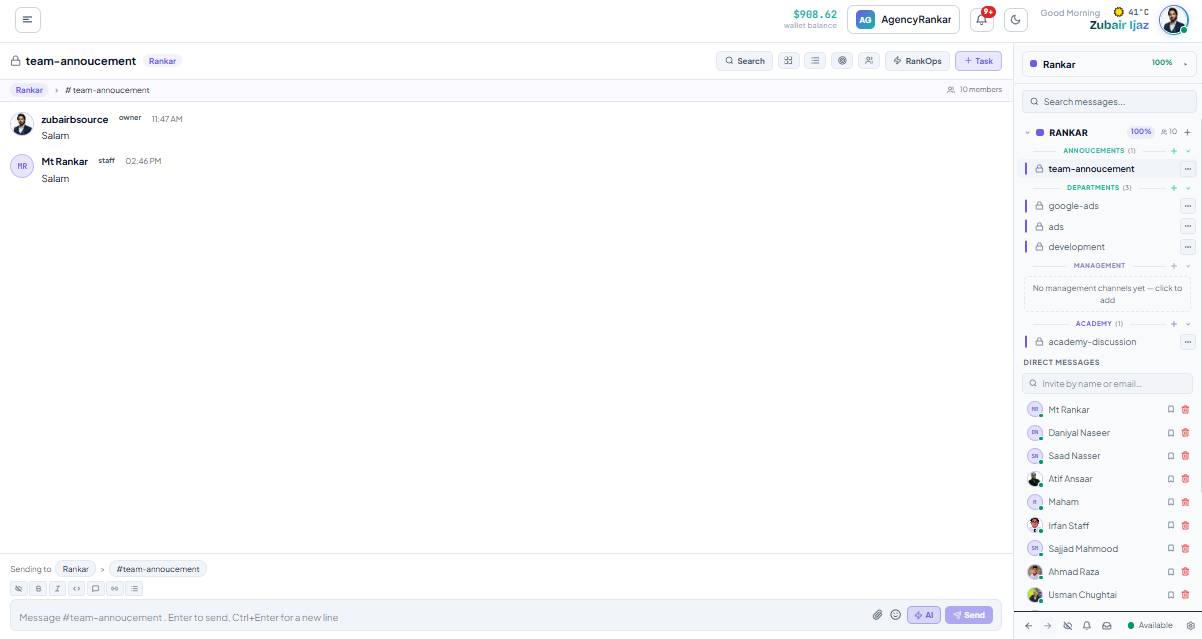
What Each Role Can Do in RankTalk
Owner — Full Access
The Owner has unrestricted access in RankTalk:
- See every channel in every project across the Agency
- Create new channels (within projects you own — though most channels auto-create)
- Delete channels
- Add or remove anyone from any channel
- Manage External Organization channel access
- See all system messages and audit logs
- Receive Agency-wide alerts
Manager — Project-Scoped Access
A Manager has full chat rights within their assigned projects:
- See all channels for assigned projects
- Create new channels within assigned projects (e.g., a working-group channel)
- Add or remove Members from channels within assigned projects
- Manage External Organization access on assigned projects' channels
- Receive project-level system alerts (goals, sprints, approvals)
They cannot:
- See channels for projects they're not assigned to
- Create or manage channels Agency-wide
- Override channel access defaults outside their projects
Staff / Agent — Task-Focused Access
Staff have limited chat rights:
- See channels for projects they're assigned to
- Participate in conversations and threaded replies
- Use
/task,/brief, and/goal statusslash commands - Be invited manually to specific channels (Owner-only override)
They cannot:
- Create new channels (even within assigned projects)
- Add or remove channel members
- Use Manager-restricted slash commands (
/sprint end,/retro,/report sprint,/report month)
This restriction is intentional. Channel creation is a Manager-level decision because new channels affect team workflow. Staff focus on conversation and task creation; structure changes go through Managers.
Step 1: Invite Members Via Agency Settings (3 Minutes)
Channel access flows from Member status, so start there. Open Agency Settings → Members → + Invite Members.
For each person you're inviting, set:
- Email address
- First and last name
- Role — Manager or Staff
- Project assignment — which project(s) they should access
If they need access to 4 projects, assign all 4 at invite time. They'll see all 4 sets of channels the moment they accept the invite and log in.
What They See After Accepting
When the invitee accepts and logs into Rankar for the first time:
- They land on the Agency dashboard
- They see the projects assigned to them in Project Management
- They see RankOps with those projects available
- They see RankTalk with channels for those projects
Zero additional configuration. The architecture handles the access scoping automatically.
Step 2: Verify Channel Access After Invite Acceptance (1 Minute)
After a new Member accepts their invite, do a quick verification.
In Agency Settings → Members, click their name. The detail panel shows:
- Their role (Manager / Staff)
- Their assigned projects
- Their RankTalk channels (auto-derived)
- Last login
If the RankTalk channels list looks wrong (missing channels or extra channels), check project assignment first. 95% of "I can't see this channel" issues trace back to incorrect project assignment.
Common First-Day Issue: Empty Channel List
A Staff member with zero project assignments sees an empty sidebar in RankTalk. They might think the tool is broken. The fix: assign at least one project at invite time.
Step 3: Use Manual Channel Invites for Exceptions (2 Minutes)
Most channel access should flow from project assignment. But occasionally you have an exception:
- A Senior SEO consultant who needs to weigh in on one technical channel without seeing the rest
- A trusted advisor reviewing a specific client engagement
- An Owner-to-Owner conversation in another Manager's channel
For these cases, use manual channel invites.
How to Manually Invite Someone to a Channel
This is an Owner-only action (Managers cannot do this).
- Open the channel
- Click the channel name → Channel Settings → Add People
- Search for the person by name or email
- Click Invite
The person now sees that channel — but only that channel. They don't get access to other channels in the same project.
What the Audit Log Records
Every manual channel invite appears in the Agency audit log as a "manual access override" event. This is intentional for compliance — Owners can see exactly who has access to what and why.
Use manual invites sparingly. Every override is a deviation from the standard access model, and large numbers of overrides become hard to audit.
Step 4: Add External Organizations to Channels (3 Minutes)
External Organizations are partner agencies you've connected to your Agency. Their members can be granted scoped channel access.
Prerequisite: Connect the External Organization First
Before you can add an External Org member to a channel, the External Org must exist in your Agency:
Project Management → [project] → External Organizations → + Add External Organization(This is covered in detail in our External Organizations guide.)
Granting Channel Access to External Org Members
Once connected, you can add their members to specific channels:
- Open the channel
- Channel Settings → External Access → Add External Org Member
- Pick from the External Org's member list
- Click Invite
External Org members appear in the channel with a small "Ext" tag next to their name, so your internal team can see who's outside the Agency boundary.
What External Org Members Can Do in a Channel
By default, External Org members can:
- Read all messages in the channel
- Post messages
- React with emoji
- Use
/taskand/briefslash commands (consumes credits on your Agency's plan)
They cannot:
- See other channels they haven't been invited to
- See internal Members or salary data
- Access RankOps for projects they don't have visibility into
- Create new channels
Step 5: Set Up Channel Notification Defaults for New Invitees (1 Minute)
When a Member joins, their notification settings inherit from your Agency defaults. Make sure these defaults are sane.
Agency Settings → RankTalk Settings → Notification DefaultsRecommended defaults for new Members:
| Channel Type | Recommended Default |
|---|---|
| #general (Agency-wide) | All messages |
| Project main channel (assigned) | Mentions and DMs only |
| Project alerts channel | All messages |
| Project wins channel | Daily digest |
| #random | Off (read when you choose) |
These defaults give new Members visibility without overwhelming them. Individual Members can opt into "All messages" on specific channels later.
Common Mistakes
- Inviting all senior staff as Manager. Manager grants project structure rights, including the ability to create channels and add Members. A senior IC who works on tasks but doesn't manage project structure should be Staff. Reserve Manager for actual project owners.
- Forgetting to assign projects when inviting Staff. A Staff member with no project assignment sees an empty RankTalk. They think the tool is broken. Always assign at least one project at invite time.
- Granting External Orgs access to internal
#generalchannel. Internal Agency-wide channels (#general,#random,#wins) should not be shared with External Orgs. Limit External Org access to specific project channels only. - Using manual channel invites instead of project assignment. If someone needs access to 4 channels in one project, assign them to the project, not 4 manual channel invites. Manual invites should be used for exceptions, not as a primary access mechanism.
- Not auditing access quarterly. Project assignments accumulate over time. The Manager assigned to 8 projects 18 months ago might only actively work on 3 today. Run a quarterly access audit (Agency Settings → Audit Log → Filter by role assignment events) and clean up stale assignments.
Pro Tip
Build a "channel access decision tree" for your operations lead. For every new hire or project assignment, the operations lead asks 3 questions:- What internal projects do they work on? → Project assignment grants channel access automatically
- Do any External Orgs need to be added to those projects? → Add at project level
- Are there any one-off channels they should see that aren't covered by project assignment? → Use manual channel invite
This decision tree, run by one person, eliminates 90% of "I can't see X channel" complaints because access gets configured correctly the first time. Sana P. has her operations lead run this for every new Member at her 14-client agency. Result: zero access tickets in the last 6 months despite onboarding 4 new team members.
What to Read Next
- Related: Article 4 [How to Use Public, Private, and External Channels] — channel types and when to use each
- Related: Article 7 [How to Add External Organizations to RankTalk Channels] — deeper dive on External Org access
- Related: Article 5 [How to Use the /task Command to Spawn RankOps Tasks from Chat] — what your invited team should learn first
Apply This With the Rankar Toolkit
RankTalk works best when paired with the rest of the Rankar suite. Spin up the relevant tools directly: RankTalk • RankOps • RankAudit • RankWriter • RankTracker • RankAIO • RankBridge • RankLinks • RankLocal • RankLaunch • RankSpy • RankUX • RankLead. Each tool pushes events into RankTalk automatically — task creation, goal alerts, ranking changes, and approval requests all surface as native messages in the right channels.