How to Use Public, Private & External Channels in RankTalk
Master the 3 channel types in RankTalk — Public, Private, and External. Complete guide to when to use each, how to create them, and access management.
# How to Use Public, Private, and External Channels
You just landed a new client who's launching a sensitive product before competitors find out. Your team needs a channel to discuss the launch — but you don't want the External Organization content partner you've added to this project to see those conversations.
You also have a new junior content writer who shouldn't yet see the strategic-level discussions in your existing project channel. And the in-house marketing lead at your biggest client wants weekly visibility into one specific channel without seeing the rest.
Three different access patterns. Three different channel types in RankTalk. This article walks you through how each works.
What You'll Learn
By the end of this article, you'll understand the differences between Public, Private, and External channel types in RankTalk, when to use each one, how to create new channels (Manager-only action), how to convert a Public channel to Private when sensitivity changes, and how External channels enable scoped partner collaboration without exposing your full Agency.
Why This Matters (The Benefit)
A correctly designed channel structure is the difference between a team that trusts the platform with sensitive information and one that takes important conversations back to email.
When your channels are properly typed:
- Sensitive client discussions stay inside Private channels where only the right Members see them
- Partner agencies get scoped access via External channels without seeing your other clients
- Default Public channels remain useful for the 80% of work that doesn't need restriction
Agencies that get channel typing right report 2x higher RankTalk adoption because team members trust the access model. Agencies that don't end up with parallel email threads for "sensitive stuff" — which defeats the purpose of having a unified communication platform in the first place. Setup work: 20 minutes once. Long-term benefit: every conversation lands in the right place by default.
The 3 Channel Types Explained
Type 1: Public Channels (Default)
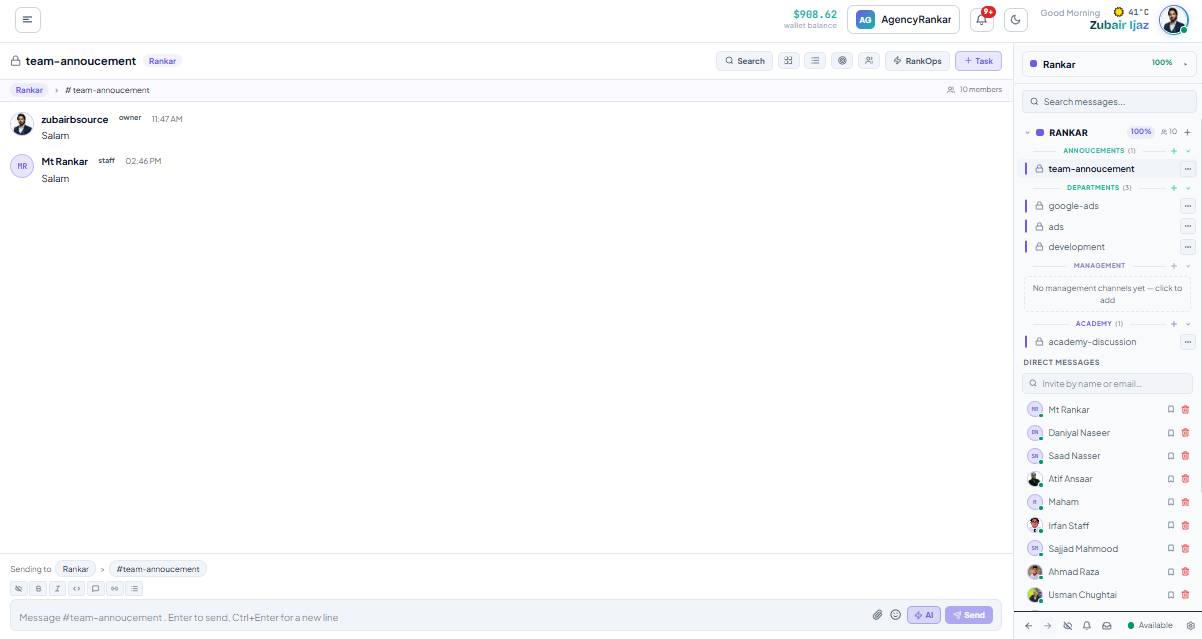
Public channels are the default. Every project gets a public main channel, alerts channel, and wins channel when the project is created in Project Management.
Visibility: Anyone assigned to the project sees the channel. Use for:- General project discussion
- Daily standup pushes (EOD Standup auto-push lands here)
- Cross-team coordination on a project
- Most day-to-day conversations
#acme-co-seo-q2 — the main project channel for Acme Co.
Type 2: Private Channels (Invite-Only)
Private channels exist within a project but require explicit invitation. They're not visible in the project's channel list to people who aren't invited.
Visibility: Only specifically invited Members see the channel. Even if someone is assigned to the project, they don't see the private channel unless invited. Use for:- Client escalations and sensitive discussions
- Senior strategy conversations
- Pre-decision deliberation before sharing with the broader team
- Personnel matters (e.g., reassignment discussions)
#acme-co-escalation (private) — for senior team members discussing a client retention risk.
Type 3: External Channels (Cross-Agency)
External channels are shared with External Organization partners. They have explicit scoping rules so partners see only what you've shared.
Visibility: Internal Members assigned to the project + specific invited External Org members. Use for:- Coordination with content production partners
- Communication with link-building partner agencies
- Client-side teams (e.g., the client's in-house marketing lead)
- Co-development partners on a joint engagement
#acme-co-content-partner (external) — shared with your content production agency for that specific client.
How to Create a New Channel
This is a Manager-only or Owner-only action. Staff cannot create channels.
Step 1: Decide if You Actually Need a New Channel
Before creating a channel, ask: does this need its own channel, or is it a threaded reply or DM?
- One question for one person → DM
- Follow-up on a specific message → threaded reply
- Ongoing conversation among 3+ people on a recurring topic → new channel
Most "I need a new channel" impulses are actually thread or DM use cases.
Step 2: Open the New Channel Dialog
From the sidebar, click + New Channel at the top of the Project channels section.
The dialog asks for:
- Channel name — e.g.,
#acme-co-content-cluster - Channel type — Public, Private, or External
- Project association — pre-filled if you're in a project context
- Purpose (optional) — 1-2 sentences appearing as the channel description
- Initial members — for Private and External channels, who gets invited
Step 3: Save and Verify
Click Create. The channel appears in the sidebar immediately. The invited members get a notification.
If you created an External channel, the External Org members see the channel only after you've added them via Channel Settings → External Access (covered in Article 7).
Public Channel Patterns That Work
Pattern 1: Main Project Channel (Auto-Created)
Every project gets a public main channel automatically. Use it for general project discussion — the EOD Standup posts here, system alerts flow here, and most team coordination happens here.
Don't try to "organize" this channel into sub-categories. It's the project's living room. Let it be messy.
Pattern 2: Alerts Channel (Auto-Created)
Every project's alerts channel receives system messages from RankOps and connected tools. Goals at risk, stuck-stage approvals, sprint forecast warnings — all land here.
Your team should check this channel daily. Treat it as the "what changed overnight" surface.
Pattern 3: Wins Channel (Auto-Created)
Every project's wins channel shows completed deliverables — auto-pulled from Recent Wins in RankOps. Less actively checked but useful for client report compilation and team morale.
Pattern 4: Topic-Specific Working Channels (Manager-Created)
For projects with multiple workstreams, Managers sometimes create topic-specific channels:
#acme-co-content-cluster— for the content cluster launch workstream#acme-co-technical— for technical SEO discussion#acme-co-outreach— for the link-building campaign
Only create these when the workstream is large enough to need separation. For most projects, the main channel is enough.
Private Channel Patterns That Work
Pattern 1: Client Escalation Channel
When a client retention risk emerges, create # (private) and invite only the senior team members handling it. Discuss strategy, draft responses, decide who reaches out to the client. Keep this off the main channel where the entire project team would see it.
Pattern 2: Senior Strategy Channel
For multi-month strategic discussions that aren't ready to share broadly. The Owner and 2-3 senior Managers discuss agency-level direction without distracting the broader team.
Pattern 3: Pre-Decision Deliberation
For sensitive decisions (e.g., reassigning a struggling Manager, dropping a client), use a private channel for deliberation. Once a decision is made, move the resulting actions to public channels where they belong.
Pattern 4: Personnel Matters
Conversations about specific team members (performance reviews, capacity issues, terminations) should live in a private channel restricted to Owner + senior Managers.
External Channel Patterns That Work
Pattern 1: Content Production Partner
You've outsourced content writing for one client to an outside agency. Create # (external) and grant the partner's writers and editor access. They see only this channel — they don't see your other clients or your internal team's discussions.
Pattern 2: Link Building Partner Coordination
For agencies that partner with specialist link-building shops, create # (external) for coordination. Outreach status updates flow here. The partner sees the project context they need without seeing the rest of your Agency.
Pattern 3: Client-Side Marketing Lead Visibility
When a client's in-house marketing lead wants regular visibility, add their organization as an External Org and create # (external). They get visibility into deliverables and discussions but only for their own engagement.
What External Org Members See vs. Don't See
In an External channel, External Org members see:
- All messages posted in that channel
- All files shared in that channel
- All thread replies in that channel
- Other channel members (both internal and External)
They do not see:
- Other channels in your Agency
- Your internal Members list outside the channel
- Salary data, audit logs, billing
- Other clients' work
How to Convert a Public Channel to Private
Sometimes a channel starts public and needs to become private as the conversation evolves.
When to Convert
- The conversation has shifted from general project discussion to sensitive matters
- New people have been added to the project who shouldn't see existing conversations
- An incident requires restricting access retroactively
How to Convert (Owner Only)
- Open the channel
- Channel Settings → Channel Type → Change to Private
- Confirm the current member list (anyone not on the list will lose access)
- Save
After conversion, anyone not in the member list immediately loses access to the channel and its message history.
Why This Matters for Compliance
Converting a public channel to private hides previous messages from anyone removed in the conversion. This is captured in the audit log as a channel type change event. Use this when sensitive conversation needs retroactive scoping.
How to Archive Channels You No Longer Need
When a project ends or a channel becomes obsolete, archive instead of deleting.
Why Archive Instead of Delete
- Searchable history is preserved
- The channel doesn't clutter the active sidebar
- Compliance and audit requirements are met
- You can unarchive if needed
How to Archive
Channel Settings → Archive Channel → ConfirmArchived channels don't appear in the sidebar but remain searchable via Cmd/Ctrl+K. To unarchive, search for the channel name, open it, and click Unarchive.
Common Mistakes
- Creating private channels for everything "to be safe." Private channels create access friction. Use public by default and private only when there's a genuine need (sensitive discussion, restricted audience). Over-privatizing makes RankTalk feel siloed.
- Using External channels for internal-only conversations. External channels are visible to partner agency members. Never use them for purely internal coordination, even by accident — accidentally posting client-confidential information in an External channel is hard to undo.
- Creating topic-specific channels too early. A project with 5 active conversations doesn't need 5 channels. Wait until a topic has its own ongoing cadence before splitting it into its own channel.
- Not archiving completed project channels. A 22-client agency with 18 months of history will have 80+ channels in the sidebar. Half are for completed projects. Archive them — the sidebar should reflect what's active, not your full history.
- Sharing private channel content via screenshot to a public channel. Defeats the purpose. If a private channel decision needs to be shared with the broader team, write a public summary; don't screenshot the private discussion.
Pro Tip
Run a "channel structure review" at the start of each new project. Before applying the New Client Onboarding Bundle in Project Management, sketch the channel structure on paper: what's the main channel for, what's the alerts channel for, are there any workstreams big enough to warrant their own channel, are any External Orgs involved (and what scope), and is there a sensitive aspect requiring a private channel from day 1? Five minutes of planning saves 3 hours of channel restructuring 6 weeks in. Sarah Chen at her 22-client agency does this for every new project — her ops team has a one-page template that captures the decisions and gets approved by the assigned Manager before project creation.What to Read Next
- Related: Article 7 [How to Add External Organizations to RankTalk Channels] — deeper dive on External channel setup
- Related: Article 3 [How to Invite Your Team & Set Up Channel Access by Role] — how role assignments flow into channel access
- Related: Article 9 [How to Use System Messages, Goal Alerts, and Workflow Notifications] — what flows into your alerts channel
Apply This With the Rankar Toolkit
RankTalk works best when paired with the rest of the Rankar suite. Spin up the relevant tools directly: RankTalk • RankOps • RankAudit • RankWriter • RankTracker • RankAIO • RankBridge • RankLinks • RankLocal • RankLaunch • RankSpy • RankUX • RankLead. Each tool pushes events into RankTalk automatically — task creation, goal alerts, ranking changes, and approval requests all surface as native messages in the right channels.