How to Search History & Pin Messages in RankTalk
Master search, pinning, and message recovery in RankTalk. Complete guide to finding past conversations, pinning important messages, and using saved items.
# How to Search History, Pin Messages, and Find Past Conversations
Three months ago, your Senior SEO mentioned a specific technical fix in a client channel — something about a sitemap configuration. You're staring at the same client problem now and you remember the conversation but you can't remember when it was, who said it, or which channel. You've been scrolling for 12 minutes. The client is waiting for an answer.
This is the daily reality of agency communication: important information lives in past conversations, and finding it is the difference between "I remember someone solved this" and "I solved this in 90 seconds."
This article walks through search, pinning, saved messages, and the patterns that turn RankTalk into a real institutional memory.
What You'll Learn
By the end of this article, you'll understand how to search within a single channel versus Agency-wide, how to use search filters effectively (by person, by date, by file type, by channel), how to pin messages so important information stays visible, how to use Saved Items as a personal reference library, and how to combine search + pins + saves to build a workflow that finds answers in seconds instead of minutes.
Why This Matters (The Benefit)
The implicit cost of team chat is search failure. Every "I know we discussed this somewhere" moment that turns into 5+ minutes of scrolling is lost productivity — and lost trust when colleagues have to repeat themselves.
A typical Manager spends 15-30 minutes per day searching past conversations: looking for a client decision, a partner's commitment, a specific technical recommendation, an audit finding. At 20 minutes/day × 5 days × 50 weeks, that's ~80 hours/year per Manager.
Mastering search drops that to 3-8 minutes/day — recovering 40-60 hours/year per Manager. The investment is 30 minutes learning the patterns. The return compounds across years of accumulated chat history.
Sarah Chen specifically credits search mastery for her ability to manage 22 clients without forgetting things. "I don't remember everything," she says. "I trust the search."
Step 1: Use Cmd/Ctrl+F for Current-Channel Search
The fastest search is within the channel you're already in.
Open Channel Search
Press Cmd+F (Mac) or Ctrl+F (Windows/Linux) from within any channel.
A search bar opens at the top of the channel showing only that channel's messages.
What to Search For
Use specific words that appeared in the original conversation:
- Specific technical terms ("hreflang", "schema markup", "canonical")
- Proper nouns (client names, competitor names, tool names)
- Numbers ("DR40+", "47 broken links", "Q2 2024")
- Distinctive phrases (a unique word combination from the original message)
What Not to Search For
- Generic words ("issue", "problem", "fix") — too many results
- Words that don't actually appear in the original ("we should improve") — search is literal, not semantic
- Full sentences — slower than 2-3 distinctive keywords
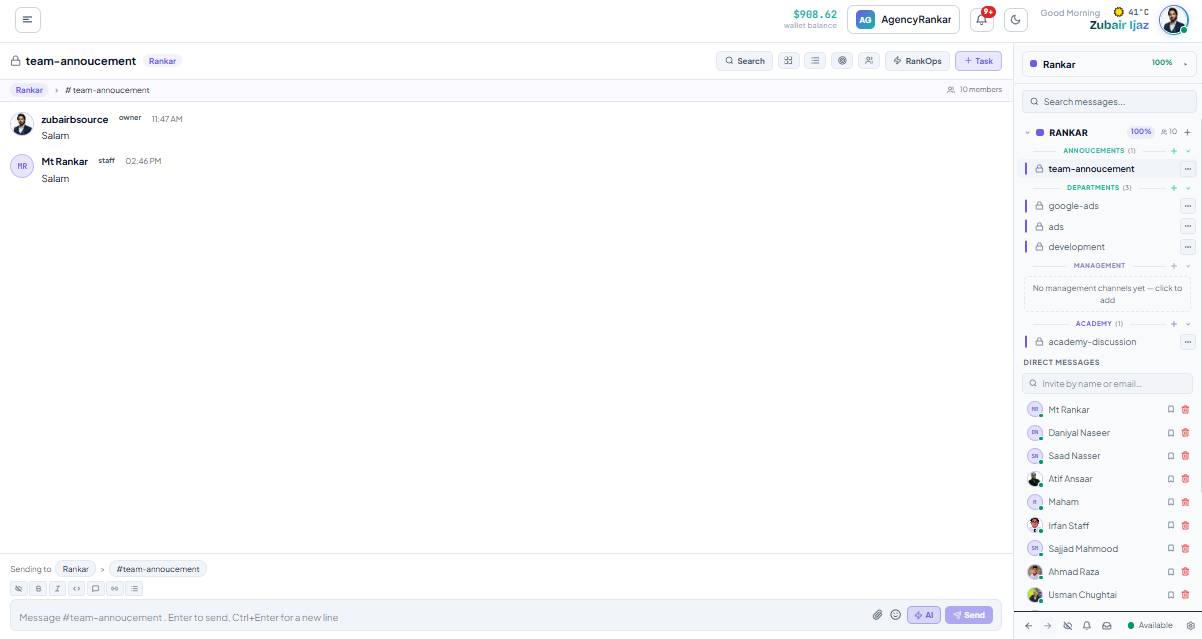
Navigate Results
Search results are highlighted in the message stream. Use:
- Enter — jump to the next result
- Shift+Enter — jump to previous result
- Esc — close search
Step 2: Use Cmd/Ctrl+Shift+F for Agency-Wide Search
When you don't know which channel the conversation happened in, use Agency-wide search.
Open Agency-Wide Search
Press Cmd+Shift+F (Mac) or Ctrl+Shift+F (Windows/Linux) from anywhere in RankTalk.
A full search modal opens with results from every channel you have access to.
What This Searches
- Every message in every channel you can see
- All threaded replies in those channels
- All DMs you've participated in
- File names and OCR-extracted content from images
What it doesn't search:
- Channels you don't have access to (External Orgs see only their granted channels' history)
- Channels archived before you joined
Filter Search Results
The full search modal supports rich filtering:
- From person — only messages from a specific Member
- In channel — narrow to specific channels
- Date range — last 24h, last 7 days, last 30 days, custom
- Message type — text only, files, threads, system messages
- Has attachments — only messages with files attached
- File type — PDF, image, doc, spreadsheet
Combine filters: "messages from Aisha · in #acme-co-seo-q2 · last 90 days · with attachments" gives you exactly the audit reports she shared.
Search Operators
Power-user operators that work in search:
from:@aisha— messages from Aishain:#acme-co-seo-q2— messages in that channelbefore:2025-01-01— messages before that dateafter:2025-01-01— messages after that datehas:file— messages with file attachmentshas:link— messages with URLsis:pinned— pinned messages only
Combine: from:@aisha in:#acme-co-seo-q2 hreflang after:2025-01-01
Step 3: Pin Important Messages to Channels
Pinning surfaces important messages permanently at the top of a channel.
When to Pin
Pin messages that:
- Document key decisions ("Client approved going with strategy A — Apr 17 call")
- Establish project standards ("All link outreach uses Template v3 — see attached")
- Contain critical references (links to important docs, audit reports, briefs)
- Record sprint themes or quarterly objectives
How to Pin (Manager+ Only)
- Find the message you want to pin
- Hover → click the ellipsis (...) menu → Pin to channel
- The message appears in the channel's Pinned Items section
Pinning is a Manager or Owner action. Staff can suggest pins but can't pin themselves.
How to See All Pinned Messages
Click the channel name at the top → Pinned Items in the side panel.
You'll see all pinned messages in chronological order with the option to unpin.
Pin Hygiene
A channel with 47 pins has zero useful pins. Keep pins to 5-10 per channel — the most important reference points.
Periodically audit pins:
- Decisions older than 6 months might be outdated
- References to deprecated docs should be unpinned
- Sprint themes change quarterly; pin only the current one
Step 4: Use Saved Items for Personal Reference
Saved items are private to you. They don't appear to other channel members.
When to Use Saved Items vs Pinning
- Saved items — your personal reference (e.g., "I need to come back to this thread")
- Pinned messages — team-wide reference (everyone should see this)
If you'd want only yourself to remember something, save it. If you'd want the whole team to remember, pin it.
How to Save
- Hover over any message → click the bookmark icon, OR right-click → Save for later
- The message appears in your personal Saved Items view
How to Access Your Saved Items
Click your avatar in the top-right → Saved Items.
You see a list of every message you've saved, with the original channel context preserved.
Useful Saved Items Patterns
- Pending follow-ups — save messages you intend to respond to but can't right now
- Knowledge collection — save messages with techniques or insights you want to reference
- Onboarding material — for new hires, save key messages explaining how the team works
- Client-specific learnings — save messages where you learned something about how a specific client thinks
Step 5: Combine Search + Pins + Saves for Workflow
The three features work together. Here are workflow patterns that combine them:
Pattern 1: Find a Past Decision
Need to find what was decided on a client question 6 weeks ago?
- First: check pinned items in the client's main channel (decisions should be pinned)
- If not pinned: search the client's channel for the question
- If not found: Agency-wide search with
from:@after:
90% of the time, decisions are findable in step 1. The other 10% require search.
Pattern 2: Recall Technical Recommendation
Need a specific technical solution someone proposed before?
- Search with distinctive technical keywords (
canonical taghreflangetc.) - Filter by person if you remember who said it
- Filter by channel if you remember the client
Distinctive keywords are key — search is faster the more unique the term.
Pattern 3: Resurface Audit Findings
Need to revisit an audit from 3 months ago?
- Search in the client's channel with
has:file PDFand the date range - Filter to audit-related keywords ("audit", "findings", "issues")
- The audit PDF should be among first few results
For frequently-referenced audits, save them to your Saved Items so you don't have to search next time.
Pattern 4: Quarterly Review Prep
Preparing a QBR for a client?
- Search the client's wins channel for the quarter
- Filter by date range to the quarter
- Pin the resulting summary to the client channel as the QBR reference
- Save your own notes to your Saved Items for follow-up
Search Tips for Better Results
Tip 1: Start Specific, Then Broaden
If "hreflang" returns 0 results, try "canonical" or "URL configuration." Distinctive words often return zero when the original message used a synonym.
Tip 2: Filter Aggressively
A 50-result list is unsearchable. Filter to 5-10 results, then read carefully.
Tip 3: Use Date Filters for Recurring Topics
Topics that recur monthly (monthly reports, monthly retainer work) overwhelm without date filters. Always filter to the relevant month.
Tip 4: Search by File for Specific Documents
If you're looking for a specific PDF, search by has:file PDF plus the file name keyword. Faster than scrolling.
Tip 5: Combine from: and in:
from:@aisha in:#acme-co-seo-q2 is a common pattern — narrow to one person in one channel for laser-focused results.
Common Mistakes
- Scrolling instead of searching. If you've scrolled for more than 30 seconds, you're doing it wrong. Press Cmd/Ctrl+F and search.
- Using generic search terms. "Audit" returns thousands of results. "Hreflang audit January" returns the one you want.
- Pinning too much. A channel with 47 pins has zero useful pins. Curate aggressively.
- Not using saved items. Every Manager has 20+ messages they'd want to reference again. Building a personal saved-items library makes you 10x faster at recall.
- Forgetting that External Orgs can see pinned messages. Pins are visible to channel members, including any External Org members with access. Don't pin sensitive internal-only content in External channels.
Pro Tip
Build a "client reference channel" pattern for every long-term client. For each client with 6+ months of engagement history, create or use a#-reference channel (or a pinned-items section in the main channel) where you pin:
- Initial scope agreement
- Each quarter's QBR decisions
- Key strategic decisions (e.g., "decided to pause link building Q3 — focus on content")
- Specific client preferences ("CMO prefers Tuesday calls, not Mondays")
- Recurring concerns or sensitivities
Sarah Chen maintains this for all 22 of her long-term clients. When a new Manager picks up a client, they scan the pinned messages and get 80% of the context in 10 minutes. Without it, new Managers take 4-6 weeks to absorb the same context. Her client retention reflects this institutional memory — clients feel known, not re-explained.
What to Read Next
- Related: Article 2 [How to Understand the RankTalk Interface] — where search, pins, and saves appear in the UI
- Related: Article 9 [How to Use System Messages, Goal Alerts, and Workflow Notifications] — system messages are searchable too
- Related: Article 7 [How to Use the AI Composer for Faster Messaging] — summarize search results with AI for faster processing
Apply This With the Rankar Toolkit
RankTalk works best when paired with the rest of the Rankar suite. Spin up the relevant tools directly: RankTalk • RankOps • RankAudit • RankWriter • RankTracker • RankAIO • RankBridge • RankLinks • RankLocal • RankLaunch • RankSpy • RankUX • RankLead. Each tool pushes events into RankTalk automatically — task creation, goal alerts, ranking changes, and approval requests all surface as native messages in the right channels.