
Dashboards and Reporting
RankTracker Analytics Connecting Rankings to Organic Performance
RankTracker's value multiplies once it's connected to real traffic and conversion data, turning a position-tracking tool into a full organic performance system.
Want to earn a Rankar Academy certificate?
This lesson is free to read in full, with nothing to sign up for. Join the Academy to track your learning, complete courses and sit the certification assessment.
Join the Academy →Performance model
Analytics & Optimisation · Dashboards and Reporting
Stage 1
Beyond Position Tracking
Stage 2
Setting Up the Integration
Stage 3
Reading the Combined View
Beyond Position Tracking
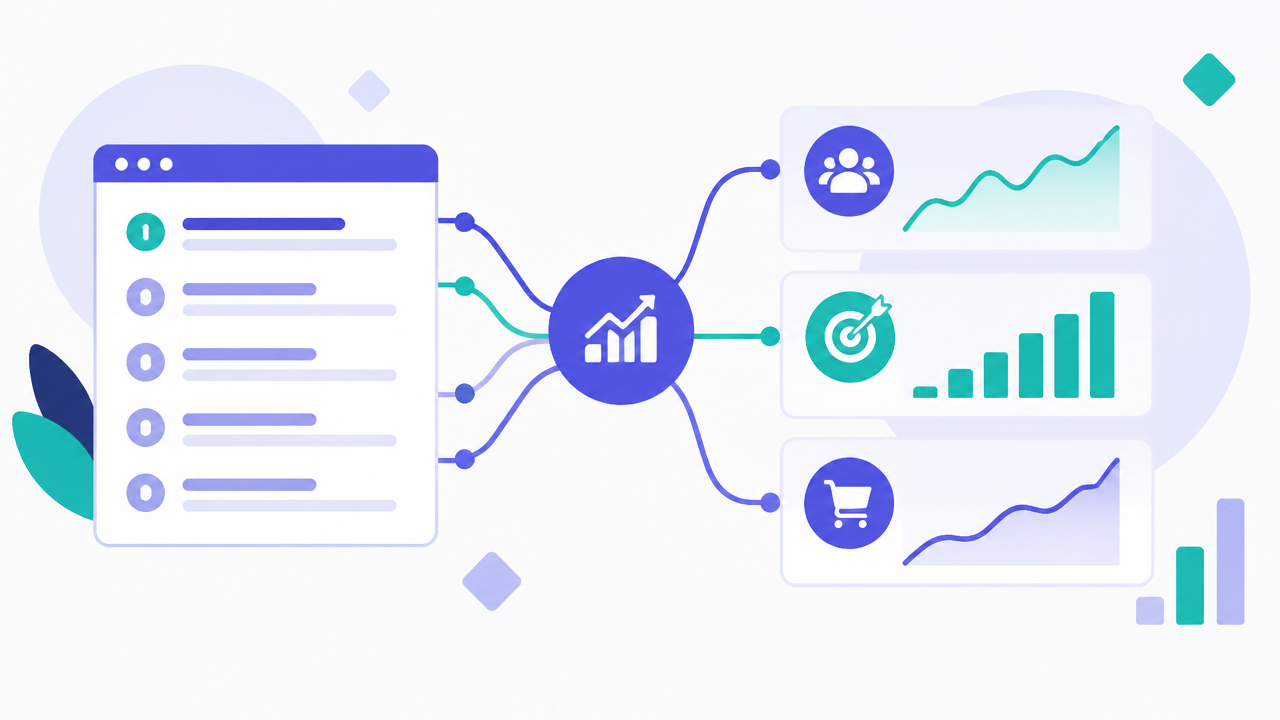
Daily rank tracking alone answers 'did we move' but not 'did it matter' — connecting RankTracker to GA4 and Search Console lets you see, for any tracked keyword, the actual sessions, engagement and conversions its landing page received over the same period, closing the loop between ranking movement and business outcome.
Group tracked keywords into tags (by funnel stage, by product line, by priority tier) inside RankTracker so reporting can roll up performance at a meaningful level rather than scrolling through hundreds of individual keyword rows.
Setting Up the Integration
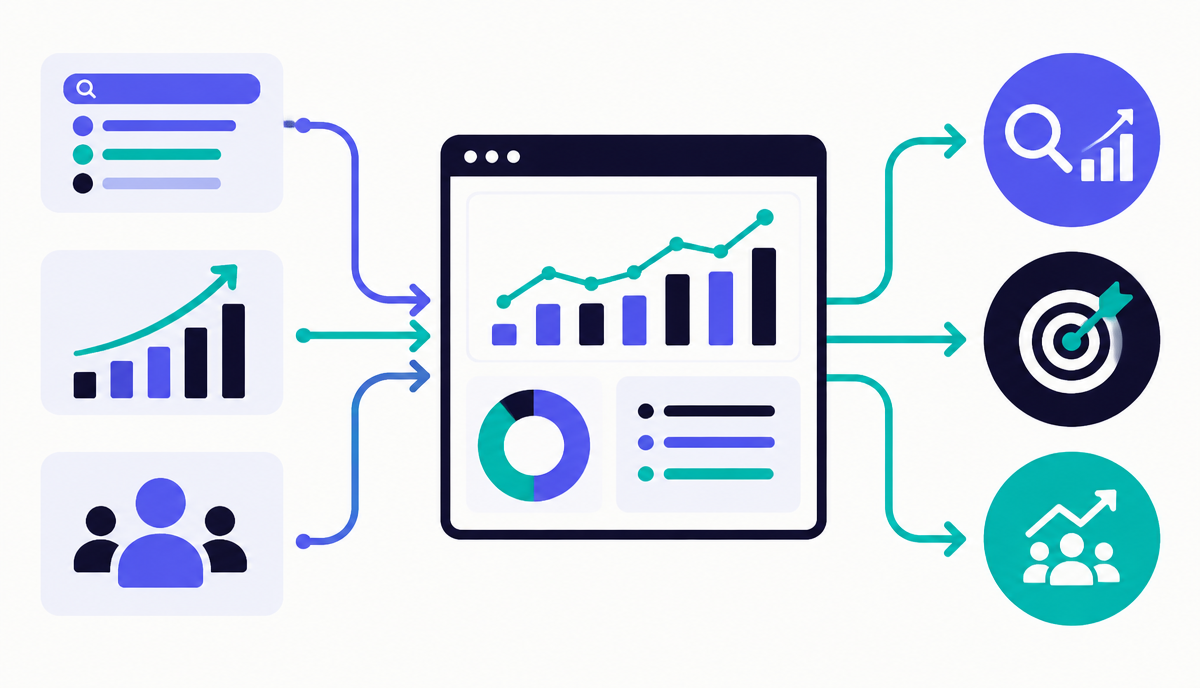
Connect both GA4 and Search Console as data sources within your RankTracker project, and map each tracked keyword to its intended landing page explicitly rather than relying on automatic matching, since automatic landing page detection can misattribute a keyword to the wrong URL when multiple pages compete for it.
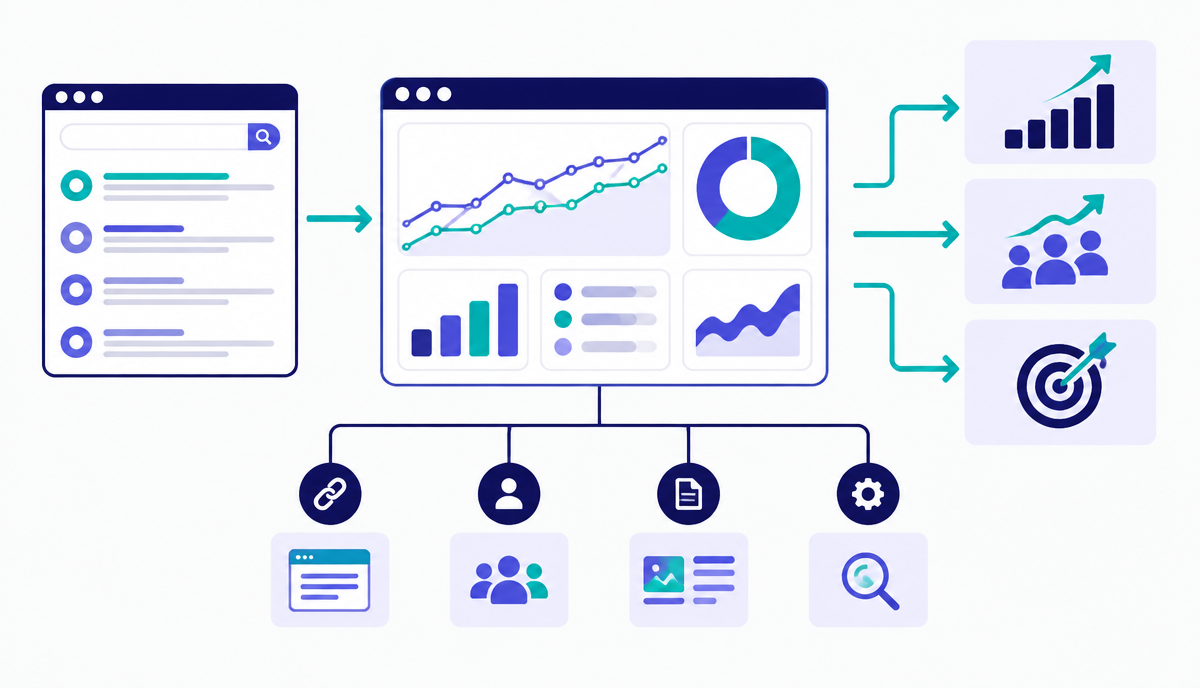
Once connected, RankTracker's combined view shows position trend alongside sessions and conversions on the same timeline for each keyword group — use this to spot cases where rankings improved but traffic didn't follow (often a CTR or SERP feature problem, covered later in this track), or where traffic grew without a ranking change (often seasonal demand or a SERP layout change).
Reading the Combined View
A keyword group showing rising positions with flat sessions usually means a search volume issue (the query itself has less demand than expected) or a SERP features issue (an answer box or shopping carousel is capturing clicks before they reach organic results) rather than an SEO execution problem — don't assume a ranking win that isn't translating into traffic is automatically a tracking fault.
Conversely, a keyword group with stable rankings but rising conversions over time usually reflects an on-page or UX improvement on the landing page itself, not an SEO change — attribute credit correctly rather than crediting ranking work for a conversion rate improvement.
Setting Up Alerts
Configure RankTracker alerts for significant position drops on your tagged priority keyword groups combined with a traffic-drop threshold, so you're notified about combined ranking-and-traffic problems (the ones that actually matter) rather than every minor daily position fluctuation, which is mostly noise.
Why this lesson matters
Neglecting to connect RankTracker data with actual organic performance metrics creates a significant blind spot. Imagine you see a keyword drop from position 3 to 10. Without traffic and conversion data, you know the ranking decreased, but not the financial impact. Was it a high-volume, high-converting term that just cost your client thousands in lost revenue, or a niche phrase with negligible traffic? This ambiguity prevents prioritisation and justifies investment in corrective actions, leaving you with incomplete intelligence and hindering strategic decision-making.
Conversely, effectively integrating RankTracker allows you to precisely quantify the value of ranking fluctuations. A small position gain from 8 to 5 for a long-tail keyword might appear minor in RankTracker alone, but when combined with analytics, you could discover it unlocked a valuable segment, driving a 20% uplift in qualified leads. This data-driven approach transforms rank tracking from a mere reporting exercise into a powerful diagnostic and strategic tool, enabling you to articulate ROI and demonstrate tangible impact to stakeholders with compelling clarity.
Diagnosing Ranking Volatility vs. Performance Impact
A common pitfall is reacting impulsively to every rank fluctuation. Integrating RankTracker with your analytics platform allows you to differentiate between benign ranking volatility and genuine performance degradation. For instance, a daily dip from position 2 to 3 might be normal algorithm flux for a competitive term, having little to no statistical impact on clicks or conversions. However, a consistent drop from 5 to 15, even if less dramatic on a single day, will show a clear correlation with reduced organic sessions and goal completions, demanding immediate investigation.
This combined view enables a more mature diagnostic process. Instead of just noting a rank change, you can instantly assess its consequence. A keyword moving up but showing no traffic increase might indicate a SERP feature change, or a more relevant snippet for a competitor. Conversely, a stable rank with declining traffic suggests issues beyond ranking, such as click-through rate degradation, possibly due to a less compelling title tag or meta description compared to new competitors. Your analysis shifts from 'what happened' to 'what does this mean for our business'.
Consider these scenarios:
• Minor rank drop, no traffic change: Normal SERP flux, no action needed.
• Significant rank drop, major traffic/conversion drop: High-priority issue, immediate investigation.
• Rank stable, traffic/conversion drop: CTR issue (snippet, competition), or intent mismatch.
• Rank up, traffic stable/drop: SERP feature changes (PPC dominance), or impression share issue.
Do it now
Take a moment to identify one core money-making keyword for a client or your own site that you track in RankTracker. Immediately navigate to the integrated analytics view within RankTracker for that specific keyword. Examine its position changes over the last 30 days and directly correlate them with organic traffic, bounce rate, and conversion data for landing pages associated with that term. Note any discrepancies or clear correlations.
• Select a high-value, high-volume keyword in RankTracker.
• Access its integrated organic traffic and conversion data.
• Identify a specific date range with notable ranking movement (up or down).
• Cross-reference this with the corresponding traffic and conversion trends for that period.
Key takeaways
- Connect GA4 and Search Console to RankTracker to see outcomes, not just positions
- Tag keywords by funnel stage or priority tier for meaningful roll-up reporting
- Map keywords to landing pages explicitly rather than relying on auto-detection
- Diagnose ranking-without-traffic and traffic-without-ranking-change cases correctly before reacting
Create a project, add keywords page by page, read positions, SERP features, share of voice and competitor gaps.